How to Create Gemini Gems: Step-by-Step Guide with 12 Work Examples
What a Gemini Gem is, and when it is worth building one
A Gem is a saved set of instructions, plus optional reference files, that turns Gemini into a specialist for one task. Instead of starting each chat with “You are an HR expert, use this template, write in this format…”, you open your Gem and simply paste the rough notes.
A Gem is worth building when three things are true: you do the task often, the instructions are long enough to be annoying to repeat, and the output should look the same every time. A weekly report, a job description, a sales follow-up, a policy answer: all good candidates. A one-off question is not.
Google makes Gems available to Gemini users aged 18 and over, on the web and in the Gemini mobile app. Google announced in 2025 that Gems no longer need a paid subscription. Work accounts depend on what your Google Workspace admin has switched on.
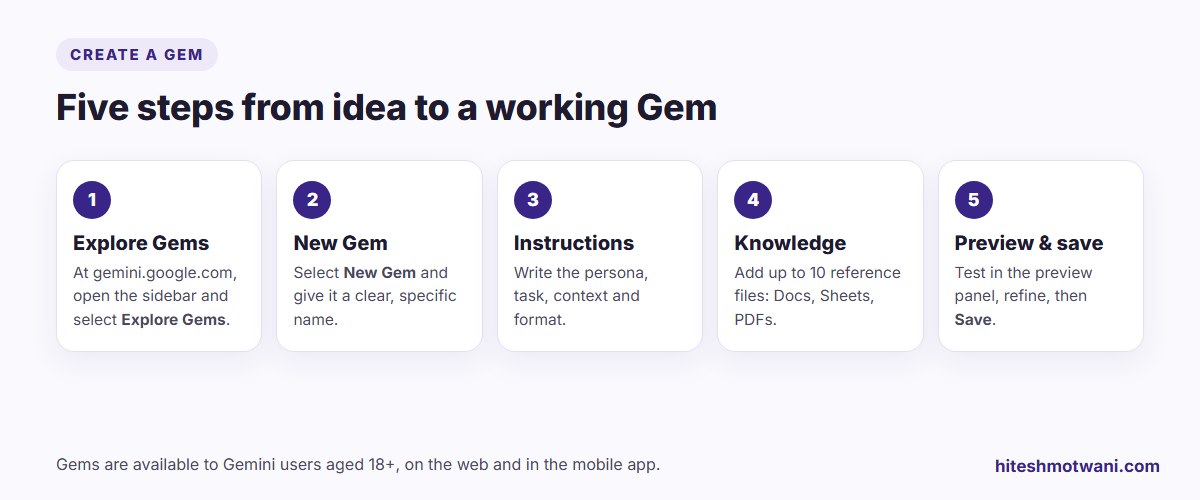
How to create a Gemini Gem, step by step
- Open Gemini at gemini.google.com and sign in with the account you will use the Gem on (personal or work).
- Select Explore Gems in the sidebar, then New Gem.
- Name it specifically. “JD writer: Mumbai roles” is better than “HR helper”. You will thank yourself when you have ten Gems.
- Write the instructions using the four-part method below.
- Add knowledge files if the Gem needs reference material, such as a template, a policy or a price list.
- Test in the preview panel on the right. Paste a real example of the input you will give it and see what comes back.
- Refine and save. Most Gems need two or three rounds of instruction edits before they are reliable.
Google also offers premade Gems, such as Brainstormer, Coding partner and Writing editor. Opening one and reading its instructions is a quick way to see what good instructions look like.
Writing instructions that work: persona, task, context, format
Google’s own guidance for Gem instructions uses four building blocks. They are worth following closely, because vague instructions are the main reason Gems give inconsistent answers.
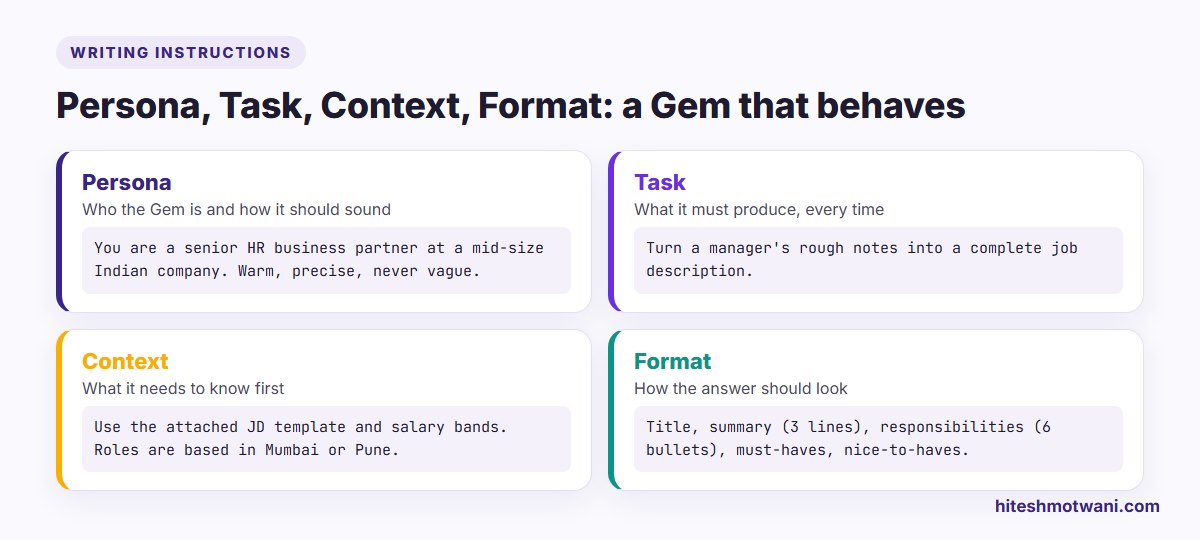
- Persona: who the Gem is and how it should sound. “A senior HR business partner, warm and precise” produces very different writing from “a recruiter”.
- Task: exactly what it produces every time. One Gem, one job.
- Context: what it must know before it starts, such as your company, your audience and the files it should use.
- Format: how the output should look: headings, length, bullet points, tables, tone.
Three additions make a big difference in practice:
- Tell it what to do when information is missing. “If the notes don’t mention a salary range, write [SALARY RANGE: CONFIRM] instead of guessing.”
- Give it one example of good output, either in the instructions or as a knowledge file.
- List what it must never do, such as invent figures, promise delivery dates or mention competitors by name.
If you already use detailed prompts with Gemini, a Gem is simply the best of those prompts, saved. Our collection of Gemini prompts is a useful source of starting points; many of them become good Gems with a persona and a format added.
Adding knowledge files: what to upload and what to leave out
Under Knowledge, you can upload reference files the Gem should use: Google Docs and Sheets, Word, PDF, Excel and CSV files, among others. Google’s Workspace update announcing the feature allowed up to 10 files per Gem.
What works well as knowledge:
- Templates: your JD format, report layout or proposal structure.
- Reference material: product sheets, a price list, a style guide, an FAQ.
- Good examples: two or three past outputs you were happy with.
What to leave out: personal data about customers or employees, confidential financials, and anything your company has not cleared for AI tools. If you update a reference file, test the Gem again, because its answers depend on what it can read.
Test, refine and keep a version note
Before you rely on a Gem, test it with:
- A normal input, such as a typical set of notes.
- A messy input, with missing details, to see whether it flags gaps or invents them.
- An input it should refuse or question, such as a request outside its job.
Each time you change the instructions, add a line at the end such as “Version 3, 8 Oct: added rule on salary ranges”. When a colleague says the Gem has started behaving differently, you’ll know why.
12 Gemini Gem examples for work
Here are twelve Gems that work well in Indian and UAE offices. Each line is the core of the instructions; add your own persona details, files and format.
Here is one complete set of instructions you can copy and adapt:
Persona: You are an experienced B2B account manager. You write short, warm, professional emails. You never oversell.
Task: Turn my rough meeting notes into a follow-up email to the client.
Context: Our services are described in the attached capability sheet. Clients are mid-size companies in India and the UAE. Use only claims from the capability sheet.
Format: Subject line; greeting; two lines thanking them and recapping the need; three bullet points on agreed next steps with dates; one-line close. Under 150 words.
Rules: If a date or owner is missing, write [CONFIRM]. Never mention pricing unless it is in the notes.
Building Gems for a whole team?
How to share a Gem with your team
Once a Gem works, sharing it means everyone gets the same quality. According to Google’s help centre:
- Open the sidebar, go to Gems, and select Share next to your Gem.
- Enter colleagues’ email addresses and choose a permission level.
- Optionally set an expiry date for access, or add a message.
- Select Send. You can also copy a link to share.
Viewers can use the Gem and see its contents. Editors can also change its instructions and files, and share it further. Shared Gems are saved in a new Google Drive folder, and you can transfer ownership to someone who already has access. Be careful with that last option: the new owner can remove your access.
On work accounts, your administrator may have turned Gem sharing off. If you see “Your organization has disabled Gem sharing”, that is a company setting, not a bug.
A tip for teams: keep one person as the owner of each shared Gem, give most colleagues Viewer access, and collect suggestions rather than letting everyone edit. Gems drift quickly when five people tweak the instructions.
Using Gems on your phone
Gems work in the Gemini mobile app as well as on the web, which is handy for quick jobs: dictating meeting notes into your minutes Gem in the car, or checking a policy answer between meetings. Longer instruction editing is easier on a laptop.
Gems vs ChatGPT Projects vs NotebookLM
People often ask which tool to use. They overlap, but each has a sweet spot:
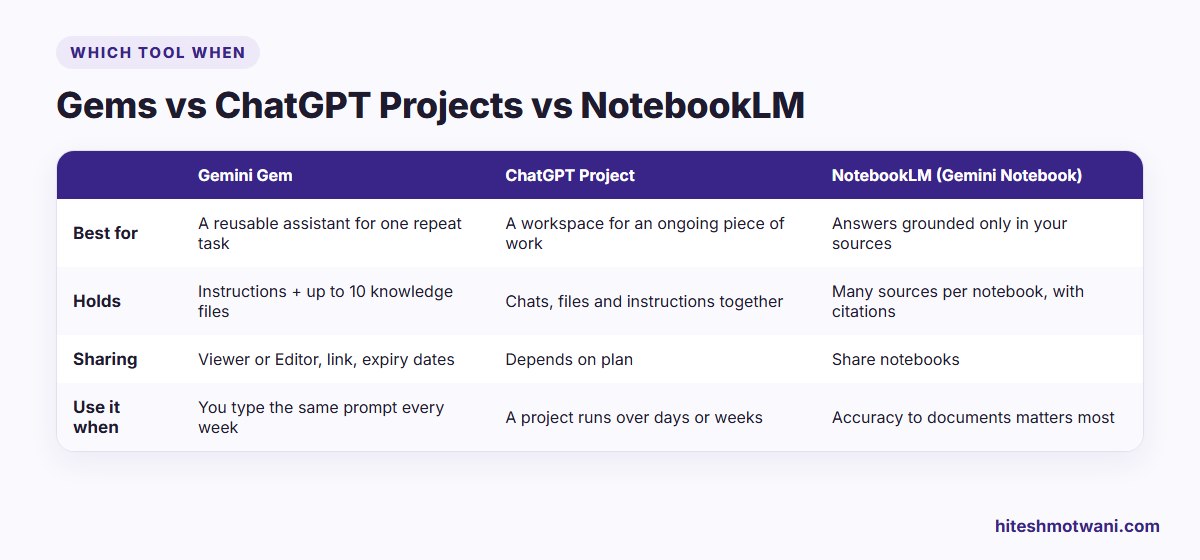
If your main need is answers that stay strictly within your documents, with citations, NotebookLM (now called Gemini Notebook) is the better fit. Our guide on how to use NotebookLM for work covers it. If you want a reusable assistant for a repeat task, build a Gem.
Common Gem mistakes, and how to fix them
- One Gem for everything. “Marketing helper” Gems produce average work. Split them: one for social posts, one for email, one for briefs.
- No format instruction. Without one, output length and structure change every time.
- No rule for missing information. The Gem fills gaps with plausible guesses. Tell it to flag them instead.
- Uploading too much. A few focused files beat a pile of loosely related ones.
- Never revisiting it. Review each shared Gem every quarter, especially if your templates or policies have changed.
A privacy checklist for company Gems
Before you build or share a Gem at work:
- Use your work account if your company has approved Gemini, not a personal Gmail account.
- Keep customer and employee personal data out of knowledge files unless your policy allows it.
- Share with named colleagues or your organisation, not “anyone with the link”, for anything internal.
- Remember that Viewers can see the instructions and files, so don’t put confidential details in them.
- If your company does not yet have rules on AI tools, a short AI usage policy for employees is a good place to start.
Start with one Gem for the task you repeat most this week. Once it saves you time, the second and third come easily.
Questions people ask
Want to get more from Gemini at work?
About the author
Hitesh Motwani is a generative AI trainer who runs hands-on workshops for teams in India and the UAE, delivered in the UAE through Skillopedia FZC LLC. He is visiting faculty at K J Somaiya Institute of Management and the author of Generative AI 360° (ZebraLearn, 2025).