How to Use Copilot in Excel: A Practical 2026 Guide with 25 Prompts
What Copilot in Excel can do in 2026
Copilot in Excel has grown well beyond suggesting the odd formula. According to Microsoft’s current documentation, it can:
- Generate formulas and data across multiple sheets.
- Create charts, PivotTables and shapes.
- Apply conditional formatting, borders and styles.
- Answer questions about your data, with the answer shown as a chart or summary.
- Pull in data from other Excel workbooks on OneDrive, SharePoint or your computer.
- Search the web to ground its answers, with citations.
What it does not do is guarantee the result is correct. Microsoft itself notes that Copilot can make mistakes or misread information. The skill worth learning is asking clearly and checking quickly.
Which licence you need, and how to check yours
This is where most confusion starts. Microsoft lists these as eligible for Copilot in Excel:
- Home users: Microsoft 365 Personal or Family with an AI credits plan, or Microsoft 365 Premium.
- Business users: a commercial Microsoft Copilot subscription, or an eligible Microsoft 365 or Office 365 business or enterprise subscription.
On work accounts, Microsoft now shows a licence label that tells you what you have:
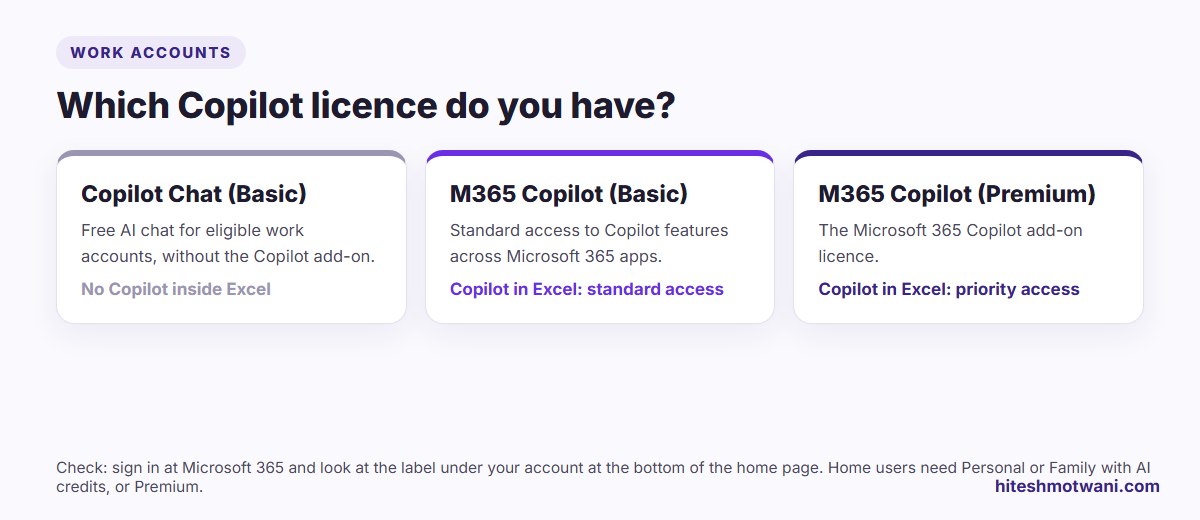
To check, sign in to Microsoft 365 with your work account and look at the label under your account at the bottom of the home page. If it says Copilot Chat (Basic), Microsoft says you don’t have Copilot inside Word, Excel, PowerPoint or OneNote. You have the separate Copilot Chat experience. If you need it in Excel, speak to your IT team about your licence.
Copilot not showing in Excel? Check these first
“Copilot not showing in Excel” is one of the most searched questions about it, and the cause is almost always one of these:
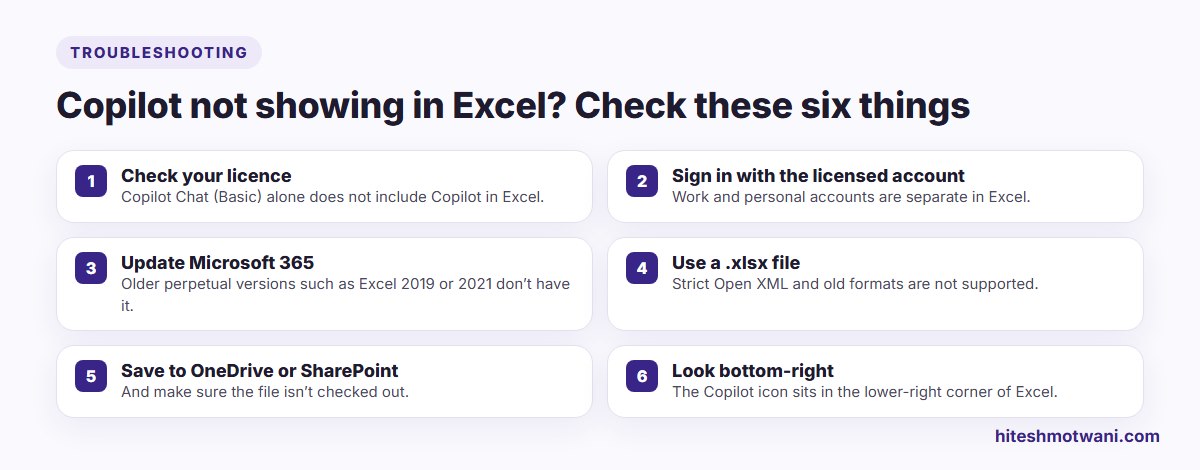
- Licence. Check the label as described above.
- Account. Excel can be signed in with a personal account while your licence is on your work account. Check the account in the top-right corner.
- Version. Copilot is part of Microsoft 365, the subscription version of Excel. One-off purchase versions such as Excel 2019 or Excel 2021 don’t have it. Update Microsoft 365 if it is out of date.
- File type. Microsoft supports the standard Excel Workbook (.xlsx). Formats such as Strict Open XML Spreadsheet are rejected.
- File location and state. If you see an “Unsupported file state” error, check the file isn’t checked out in SharePoint. Saving the workbook to OneDrive or SharePoint also resolves many issues.
- Where to look. Microsoft’s current guidance places the Copilot icon in the lower-right corner of Excel, so if you are hunting along the ribbon you may have missed it.
How to start your first Copilot session
- Open your workbook in Excel for Microsoft 365, on Windows, Mac or the web.
- Select the Copilot icon to open the Copilot pane.
- Choose a mode (see below). If you are new to it, start with Chat only so nothing changes in your file.
- Type a clear request, for example: “Summarise sales by region and month, and tell me which region dropped most against last year.”
- Read the answer, check one or two figures against the data, then move on to Plan or Allow editing when you want Copilot to make changes.
Before any big change, save a copy of the workbook. When Copilot is making changes, you can select Stop at any time.
Allow editing, Plan and Chat only: the three modes explained
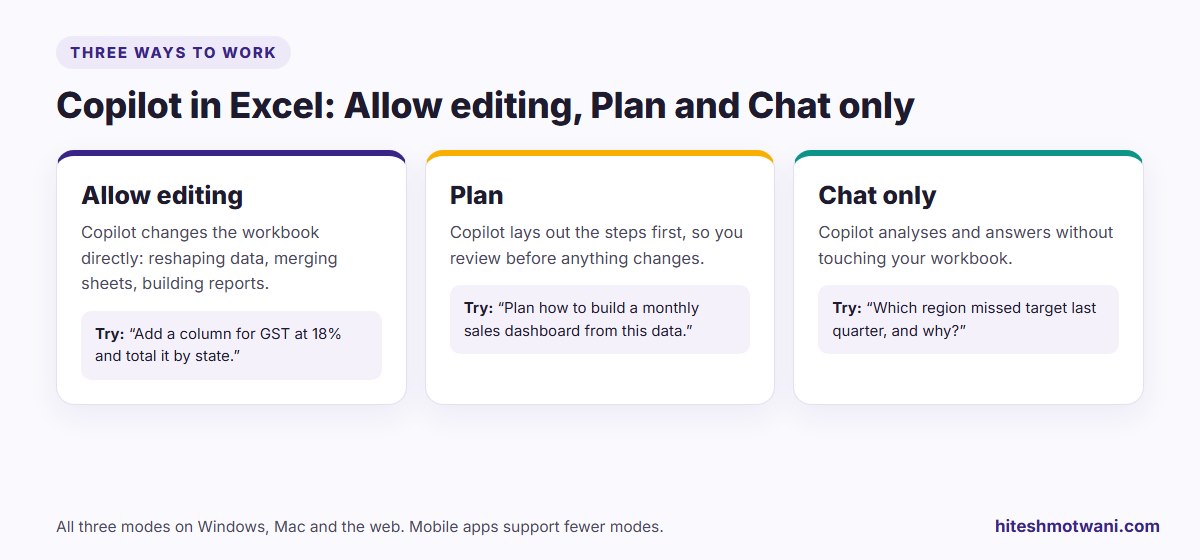
- Allow editing lets Copilot change the workbook directly. Use it for multi-step jobs such as reshaping data, merging sheets or building a report tab.
- Plan makes Copilot set out a step-by-step approach first, so you can review it before anything changes. This is a good default for important files.
- Chat only analyses your data and answers questions without touching the workbook. It is ideal for understanding a file someone else built.
All three modes are available in Excel on Windows, Mac and the web. Microsoft lists fewer modes on mobile: chat and plan on iPad, and chat on iPhone and Android, with editing rolling out on some devices.
Generating and explaining formulas
This is where many people start, and where Copilot saves the most frustration. Two habits help:
- Name the columns in your request: “In column F, calculate GST at 18% on the taxable value in column D.”
- Ask it to explain any formula you don’t understand: “Explain what the formula in H2 does, step by step.” This is very useful for inherited spreadsheets.
A note on the =COPILOT() function: Microsoft offered it as a preview that let you call Copilot from inside a cell. Microsoft’s documentation says it was discontinued on 14 September 2026, and that cells using it now return a #NAME? error when they recalculate. Use the Copilot pane instead, and replace any =COPILOT() formulas in files you still rely on.
Data analysis: PivotTables, charts and insights
For analysis, describe the question rather than the mechanics:
- “Create a PivotTable of revenue by product and quarter, and a chart showing the trend.”
- “Which five customers grew fastest this year, and what share of revenue do they make up?”
- “Highlight any month where expenses rose more than 15% over the previous month.”
Always check one or two numbers against the raw data. If Copilot’s answer and your check disagree, ask it to show how it calculated the figure.
Cleaning and reshaping messy data
Exports from accounting systems, CRMs and HR tools are rarely tidy. Copilot handles common clean-up well:
- Splitting a full name into first and last name columns.
- Standardising dates that arrived in mixed formats.
- Removing duplicates and flagging near-duplicates for review.
- Merging two sheets on a common ID, such as an employee code or invoice number.
- Unpivoting a wide monthly report into a long table that is easy to analyse.
Do this on a copy, in Plan mode first, so you can see what Copilot intends to change.
Training a finance or MIS team on Copilot?
25 Copilot prompts for Excel
These prompts are written for the kind of work finance, sales, HR and operations teams in India and the UAE do every week. Adjust the column names to match your file.
Finance and accounts
- “Add a column calculating GST at 18% on the taxable amount, and total GST by state.”
- “Compare this month’s expenses with last month by category and list the five biggest increases.”
- “Create an ageing summary of receivables: 0–30, 31–60, 61–90 and over 90 days, by customer.”
- “Reconcile the bank statement sheet with the ledger sheet on date and amount, and list unmatched items.”
- “Explain the formulas in the summary tab and point out any that look inconsistent.”
- “Build a budget versus actual table by department, with variance and variance percentage.”
- “For UAE entities, calculate VAT at 5% on the net amount and summarise by month.”
Sales and marketing
- “Summarise sales by region and product, and chart the monthly trend.”
- “Which customers haven’t ordered in the last 90 days? List them with their last order value.”
- “Rank sales reps by achievement against target and highlight anyone below 80%.”
- “Calculate conversion rate by lead source and show which source is improving.”
- “Create a PivotTable of pipeline value by stage and expected close month.”
- “Group these campaign results by channel and show cost per lead.”
HR and people
- “Calculate headcount by department and location as of the last day of each month.”
- “Show attrition by department for the last 12 months as a percentage of average headcount.”
- “Flag employees whose probation ends in the next 30 days.”
- “Summarise leave taken by type and department, and highlight anyone above the policy limit.”
- “Compare this month’s payroll register with last month’s and list every employee whose net pay changed by more than 10%.”
Operations and MIS
- “Merge the dispatch sheet with the invoice sheet on order number and list dispatched but unbilled orders.”
- “Create a weekly stock summary with items below reorder level highlighted in red.”
- “Convert this wide monthly report into a long table with columns for month, item and value.”
- “Standardise the dates in column B to DD-MM-YYYY and flag any that can’t be converted.”
- “Remove duplicate rows based on invoice number and list what was removed in a new sheet.”
- “Build a one-page MIS tab with key totals, a trend chart and the three biggest changes this month.”
- “Plan how to turn this raw export into a monthly dashboard, step by step, before changing anything.”
If you also write a lot with ChatGPT, our list of ChatGPT prompts for business covers emails, proposals and planning.
Copilot in Excel on Mac, web, iPad and phone
Excel on Windows, Mac and the web gives you the full experience with all three modes. On iPad you can chat and plan; on iPhone and Android you can chat, with editing rolling out on some devices. Phones are fine for quick questions about a report. For building or reshaping a workbook, use a laptop.
Copilot in Excel vs Gemini in Google Sheets
If your company runs on Google Workspace rather than Microsoft 365, Gemini offers similar help inside Google Sheets. The habits that matter are the same in both: name your columns, ask one clear question at a time, start in a mode that doesn’t change your data, and check the numbers. If you use Gemini more broadly, our guide on how to create Gemini Gems shows how to save your best prompts as reusable assistants.
Accuracy, data privacy and a review checklist
Copilot works from the data in your workbook and your organisation’s Microsoft 365 environment, under your company’s settings. A few rules keep it safe and accurate:
- Check two numbers against the raw data before you share any Copilot result.
- Use Plan mode for any workbook that feeds a report, filing or payment.
- Keep a copy before large changes.
- Follow your company’s rules on confidential and personal data. Sensitivity labels set by your organisation still apply.
- Watch the language. Microsoft lists more than 40 supported languages for Copilot in Excel, including Arabic, but its list does not include Hindi, so write prompts in English if you want the most reliable results.
Choosing outside help for your team? Our guide to choosing a Microsoft Copilot trainer sets out what to look for. Whatever route you take, the teams that get the most from Copilot are the ones that practise on their own files, not on demo data.
Questions people ask
Want your whole team confident with Copilot?
About the author
Hitesh Motwani is a generative AI trainer who runs hands-on workshops for teams in India and the UAE, delivered in the UAE through Skillopedia FZC LLC. He is visiting faculty at K J Somaiya Institute of Management and the author of Generative AI 360° (ZebraLearn, 2025).