How to Use ChatGPT Deep Research: A Practical Guide for Work
What ChatGPT deep research does
Deep research is a ChatGPT mode for questions that need many sources rather than one quick answer. OpenAI describes it as planning, researching and synthesising information into a documented report. In practice it does four things a normal chat does not:
- It proposes a research plan before it starts, which you can edit.
- It reads and compares many sources: the public web, specific sites you choose, files you upload and, where your plan and workspace allow, connected apps such as Google Drive or SharePoint.
- It takes longer, typically several minutes, and you can watch its progress or interrupt it.
- It returns a structured report with citations, a table of contents, a list of sources used and an activity history.
That makes it suited to comparisons, market scans, policy summaries and background briefings. It is overkill for a quick fact, and the wrong tool for anything where the answer must be authoritative without checking, such as a legal position or a regulatory deadline.
When to use deep research, and when not to
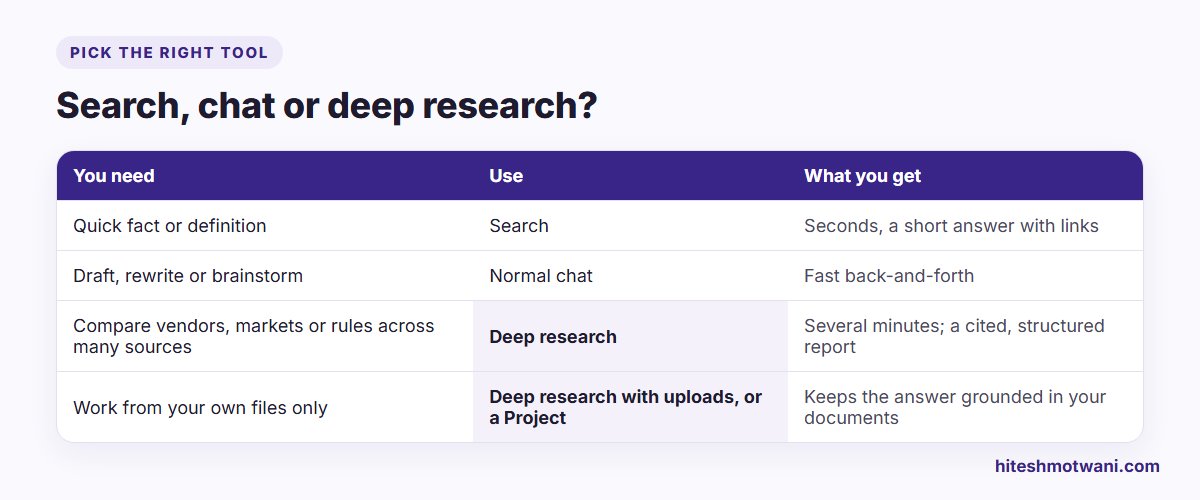
A useful rule: if you would normally open ten browser tabs and take notes, deep research is a good fit. If one good source would answer the question, search is faster. If you are writing or rewriting rather than finding things out, stay in normal chat.
Deep research usage varies by plan, and your in-product counter shows how many tasks you have left. On plans with a monthly allowance, OpenAI says the count resets 30 days after your first use. Availability also depends on your country, so check what your own account shows rather than relying on figures quoted online, which change often.
How to start a deep research task
ChatGPT gives you three ways in:
- Type
/Deepresearchat the start of a message. - Click the + tools menu in the message box and choose Deep research.
- Choose Deep research from the sidebar.
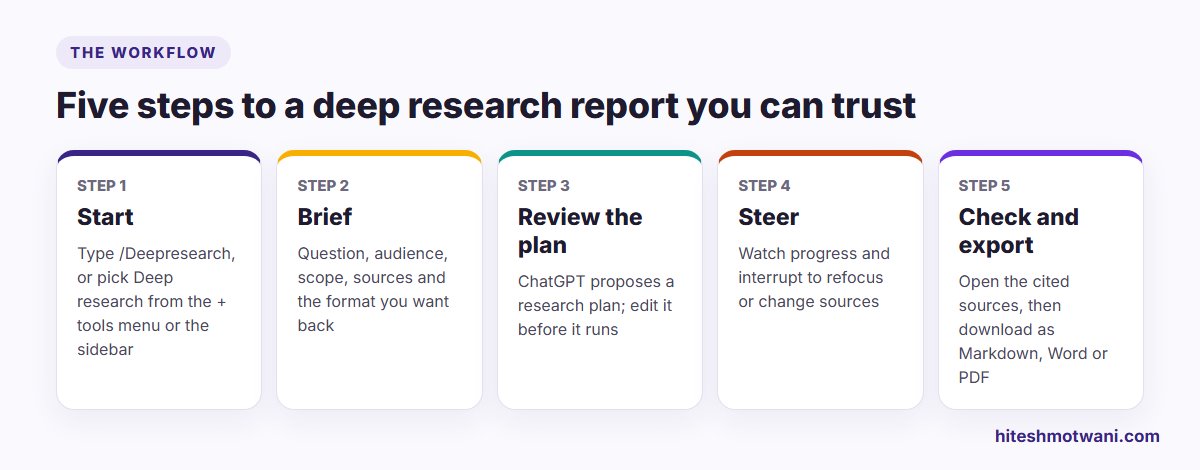
Before you send the prompt, decide what the research may read. By default it can use the public web, files you upload and connected apps available to your account. To focus on particular websites, use Sites › Manage sites in the message box: you can restrict research to the sites you list, or prioritise them while still allowing a wider web search.
Write a brief, not a question
The quality of a deep research report depends almost entirely on the brief. A one-line question gets a generic report; a brief that sets out the goal, audience, scope and output gets something you can use.
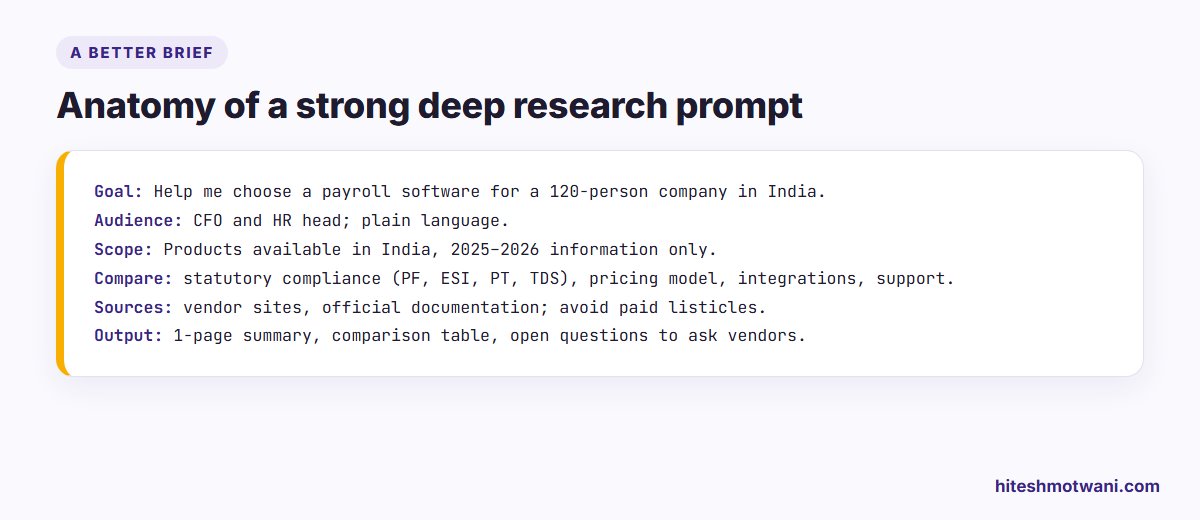
Cover these six points:
- Goal: the decision the report supports, not just the topic.
- Audience: who will read it and how much they already know.
- Scope: country, time period, company size or industry.
- What to compare: the criteria that matter for the decision.
- Sources: which kinds of source you trust, and which to avoid, such as paid listicles.
- Output: length, structure and anything you need at the end, such as open questions or a recommendation.
Three examples you can adapt:
For more general prompt-writing patterns, my list of ChatGPT prompts for business is a good starting point.
Review the research plan before it runs
Before it starts, ChatGPT may ask clarifying questions and will show a proposed research plan. This is the most valuable minute of the whole process. Read the plan and fix it now:
- Remove angles you don’t need, so the report doesn’t spend half its length on them.
- Add the criteria it missed.
- Narrow the geography or time period if the plan is too broad.
- Tell it which sources to prefer if the plan doesn’t mention any.
While the research runs, you can watch progress and interrupt to refocus it or change which sources it can use. If you see it heading somewhere unhelpful early, stop and correct it rather than waiting for a report you will discard.
Rolling ChatGPT out to a team?
Check the report before anyone relies on it
Every deep research report includes citations or source links, a sources used section and an activity history. Use them. A practical checking routine:
- Read the summary first and ask whether it actually answers your goal.
- Open the sources behind the three or four claims your decision depends on, and confirm they say what the report says.
- Check dates. Prices, regulations and product features change; make sure the sources are current enough.
- Look for gaps. Ask ChatGPT in the same conversation what it could not find or was unsure about.
- Label it. If you share the report, say it was AI-assisted research and who checked it.
Deep research reports read convincingly whether or not they are right. The checking routine is what turns them from a draft into something you can stand behind.
Export and reuse the report
Completed research opens in a full-screen report view with a table of contents. You can download it as Markdown, Word or PDF. Word is usually the most useful format at work, because you can edit the report, add your own conclusions and track changes with colleagues.
If you research the same kind of question often, such as vendor shortlists or competitor updates, save your brief as a template and reuse it. Keeping a set of proven briefs is the simplest way to make the whole team’s research consistent.
Working with your own files and data
Deep research can work from files you upload, and it uses read access only on connected apps: it does not take actions in those apps. On business plans, admins control which apps are available and who can use deep research, and app connections never override the permissions you already have.
That is useful, but it raises the usual questions about confidential information. Before uploading client documents or internal reports, check your company’s rules. If you don’t have rules yet, my guide to an AI usage policy for employees sets out what a sensible one covers. For research that should stay strictly inside a fixed set of documents, a tool built around your own sources, such as NotebookLM, is often a better fit.
Deep research in other tools
ChatGPT is not the only option. Google Gemini offers its own Deep Research mode, and Claude has a research feature too. The habits in this guide transfer directly: a clear brief, an edited plan, controlled sources and a proper check. If your company uses Gemini, my guide to creating Gemini Gems shows how to save research briefs as reusable assistants.
Common mistakes
- Asking a topic, not a question. “AI in banking” produces an essay; “Which three AI uses are Indian private banks publicly piloting, and what did they report?” produces research.
- Skipping the plan. Most disappointing reports could have been fixed in the plan.
- Trusting the citations without opening them. A citation proves a source exists, not that it supports the claim.
- Using it for urgent answers. OpenAI itself suggests search or normal chat when time is critical.
- Forwarding the report unedited. Add your judgement; that is the part your colleagues need from you.
Questions people ask
Want your team using AI research tools well?
About the author
Hitesh Motwani is a generative AI trainer who runs hands-on workshops for teams in India and the UAE, delivered in the UAE through Skillopedia FZC LLC. He is visiting faculty at K J Somaiya Institute of Management and the author of Generative AI 360° (ZebraLearn, 2025).