How to Use Copilot in Outlook: A Practical Guide with 20 Prompts
What Copilot can do in Outlook
According to Microsoft’s current documentation, Copilot in Outlook can:
- Summarise an email thread so you can catch up in seconds.
- Draft a new email or reply from a short instruction, in the tone and length you choose.
- Coach you on a draft you’ve written, with suggestions on tone, clarity and sentiment.
- Schedule a meeting from an email thread.
- Prioritise your inbox, marking messages as high, normal or low priority with a reason.
- Chat with you about your email and calendar, and carry out triage actions such as flagging, pinning or archiving.
- Prepare you for a meeting from its calendar item.
Which of these you see depends on your account and your Outlook version. That is the first thing to sort out.
Do you have Copilot in Outlook?
Microsoft says Copilot in Outlook is available with a Microsoft Copilot (work) licence, in Outlook for Microsoft 365 on Windows, Outlook for Mac, new Outlook for Windows, Outlook on the web, and the Outlook apps for iOS and Android. Chatting with Copilot inside Outlook needs a work or school account with a business Copilot subscription, and the new Outlook for Windows or Outlook on the web. Some Copilot features also reach Microsoft 365 home subscriptions, so personal users should check what their own app shows.
If you are not sure which licence you have, my guide to Copilot in Excel explains how to read the licence label on your Microsoft 365 home page.
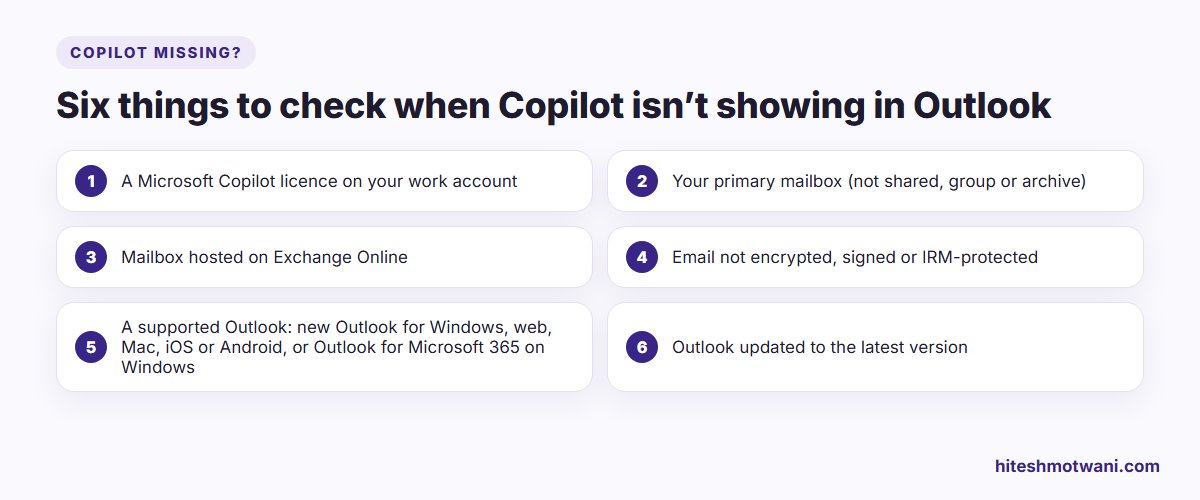
There are a few limits that surprise people. Microsoft says Copilot works only on your primary mailbox, not on shared, group, delegate or archive mailboxes, and only on mailboxes hosted on Exchange Online. It does not work on signed or encrypted emails, emails protected with IRM, or some sensitivity-labelled emails. If Copilot is missing on one message but not others, that is usually why.
The five features you will use most
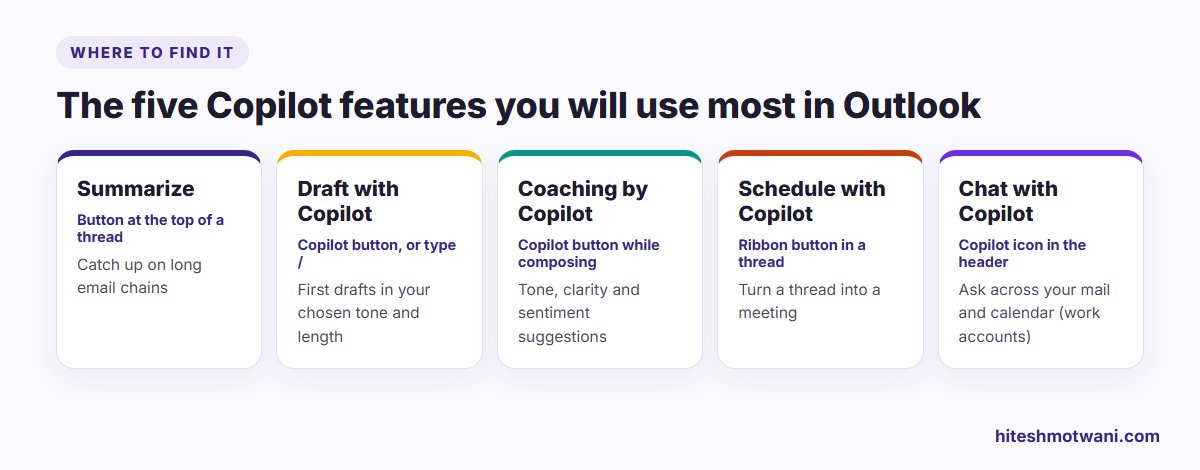
1. Summarize: catch up on a long thread
Open a thread and select Summarize at the top. Copilot gives you the key points and, where relevant, who asked for what. Use it when you have been copied into a 15-message thread or return from leave.
Treat the summary as a map, not the territory. If a decision or a number matters, read the original message it came from before you act.
2. Draft with Copilot: get a first draft
When composing, select the Copilot button on the ribbon and choose Draft with Copilot, or simply type / in the message body and choose it from the list. Describe what you want, pick a tone and length, and generate.
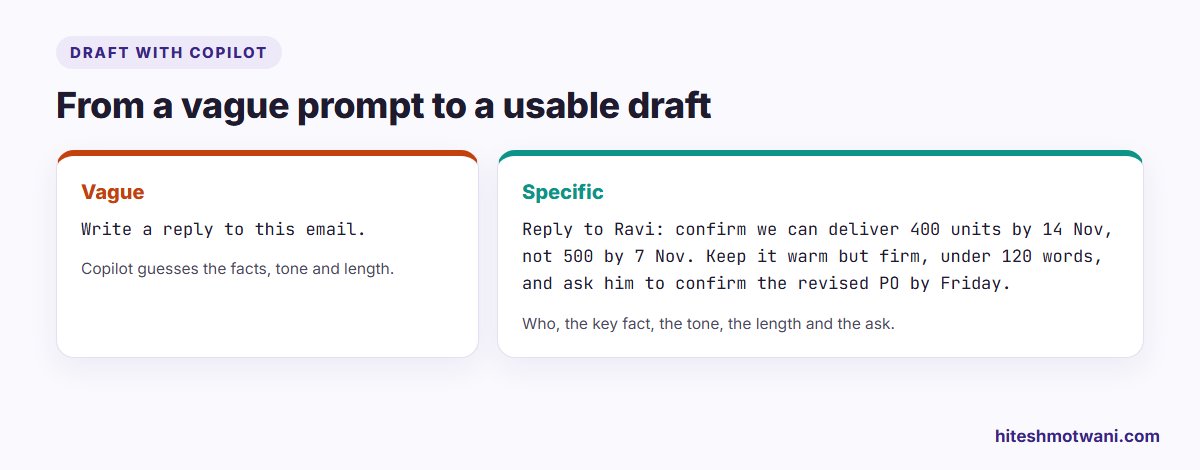
The single biggest improvement you can make is to give Copilot the facts it cannot know: who the reader is, the key point, the tone, the length and what you need back. “Write a reply” leaves Copilot guessing; a two-line instruction with the facts produces something you can send after a light edit.
3. Coaching by Copilot: improve what you wrote
For important emails, write the draft yourself, then choose Coaching by Copilot from the Copilot button. It suggests changes to tone, reader sentiment and clarity, and you can apply them individually or all at once. This works especially well for difficult messages, such as declining a request, chasing a payment or giving feedback, where your own words matter but a second opinion helps.
4. Schedule with Copilot: from thread to meeting
In an email thread, select Schedule with Copilot on the ribbon. Copilot drafts a meeting invitation based on the conversation. Microsoft says it can schedule meetings with up to two other people, or add events such as focus time to your calendar. For larger meetings, use the normal scheduling assistant.
5. Chat with Copilot: ask across your mail and calendar
On work accounts, select the Copilot icon in Outlook’s header to open Copilot beside your inbox. You can ask questions such as “What did the finance team ask me to do this week?”, and ask it to take triage actions on one or several emails, such as flagging or archiving. You can also describe an Outlook rule in plain language and let Copilot set it up.
Training a whole team on Copilot?
Prioritise your inbox
Prioritise my inbox marks incoming email as high, normal or low priority and shows the reason. You can tune it in Settings by adding topics that should always count as high or low priority, such as a key client name or a newsletter you rarely read. It is a good way to deal with a crowded inbox, but check the low-priority view for a week before trusting it with anything important.
20 prompts for Copilot in Outlook
Adjust the names and details to your own situation. The first set works with Draft with Copilot; the second with Copilot chat on work accounts.
Drafting and replying
- “Reply to Anil: thank him for the proposal, say we need two weeks to review, and ask for references from two clients in manufacturing.”
- “Politely decline this meeting invitation, suggest Thursday or Friday afternoon instead, keep it under 60 words.”
- “Write a firm but friendly payment reminder for invoice 2214, 30 days overdue, and ask for a payment date.”
- “Draft a welcome email to a new joiner in my team with their first-week schedule: [paste schedule].”
- “Turn these bullet points into a short project update for the leadership team, with risks at the end.”
- “Reply to this complaint: apologise, explain the delay was due to a supplier issue, and offer a revised delivery date of 20 November.”
- “Write a follow-up after today’s client meeting with the three action points we agreed: [paste].”
- “Make this email shorter and more direct without losing the deadline.”
- “Draft an out-of-office message for 3 to 10 November with my colleague Meera as the contact for urgent matters.”
- “Write a request to IT for access to the shared finance folder, explaining it is for the quarterly audit.”
Catching up and organising (Copilot chat)
- “Summarise the emails I received from the Dubai office this week.”
- “Which emails ask me to do something and haven’t been replied to?”
- “What decisions were made in the procurement thread about the new laptops?”
- “Flag every email from the auditors this month.”
- “Archive all newsletters older than two weeks.”
- “Create a rule that moves invoices from vendors into the Accounts folder.”
- “What do I need to prepare for tomorrow’s 10 a.m. meeting?”
- “Summarise this week’s emails about the product launch into five bullet points for my manager.”
- “Find the email where the client confirmed the revised pricing.”
- “List the meetings this week that have no agenda attached.”
If you regularly write to Arabic-speaking colleagues or clients, my guide to writing Arabic business emails with AI covers how to check translations before you send them.
Rules worth keeping
- Read every draft before sending. Microsoft itself advises reviewing and verifying AI-generated content. Copilot does not know what was agreed on a call.
- Check numbers and dates in summaries against the original email.
- Be careful with sensitive threads. Copilot works within your existing permissions and your organisation’s settings, but HR, legal and client-confidential emails still deserve extra care. Follow your company’s AI policy; if it doesn’t have one, my article on an AI usage policy for employees covers the basics.
- Keep your voice. Use Coaching for important emails rather than generating them from scratch, so the message still sounds like you.
Is it worth the time?
Email is where small time savings add up: a few minutes saved on each long thread, a draft that needs one edit instead of ten. For a realistic way to estimate the effect on your own week, see how much time AI actually saves you. And if you do a lot of desk research alongside email, my guide to ChatGPT deep research covers the research side.
Questions people ask
Getting more from Microsoft Copilot at work
About the author
Hitesh Motwani is a generative AI trainer who runs hands-on workshops for teams in India and the UAE, delivered in the UAE through Skillopedia FZC LLC. He is visiting faculty at K J Somaiya Institute of Management and the author of Generative AI 360° (ZebraLearn, 2025).