How to Use ChatGPT Projects: A Practical Guide with Templates
What a ChatGPT project actually is
A project is a workspace inside ChatGPT that groups three things: chats, sources (files, pasted text and links from apps) and instructions. When you ask a question inside a project, ChatGPT uses that context first. OpenAI’s own examples are a study guide built from class materials, briefs drafted from collected project details, and an event tracked across vendors and budgets.
The practical difference shows up on day three. In an ordinary chat you explain the background again. In a project you open a new chat and simply ask, “Draft this week’s update for the client,” because the brief, the tone rules and last week’s update are already there.
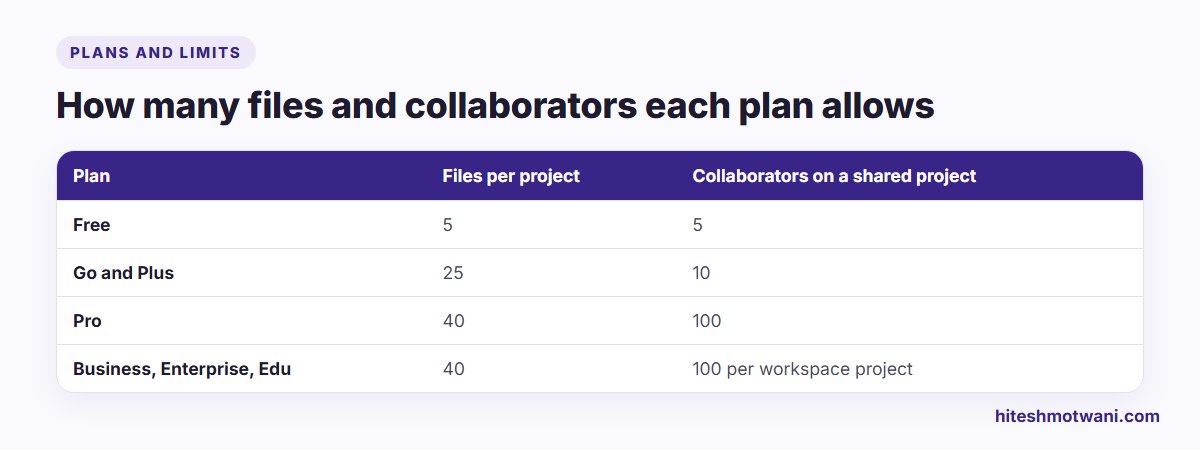
Projects are included in every ChatGPT plan, including Free, and there is no extra charge for them. You can create as many as you like. What changes by plan is how many files each project can hold and how many people you can share it with (more on that below).
How to set up a ChatGPT project in five steps
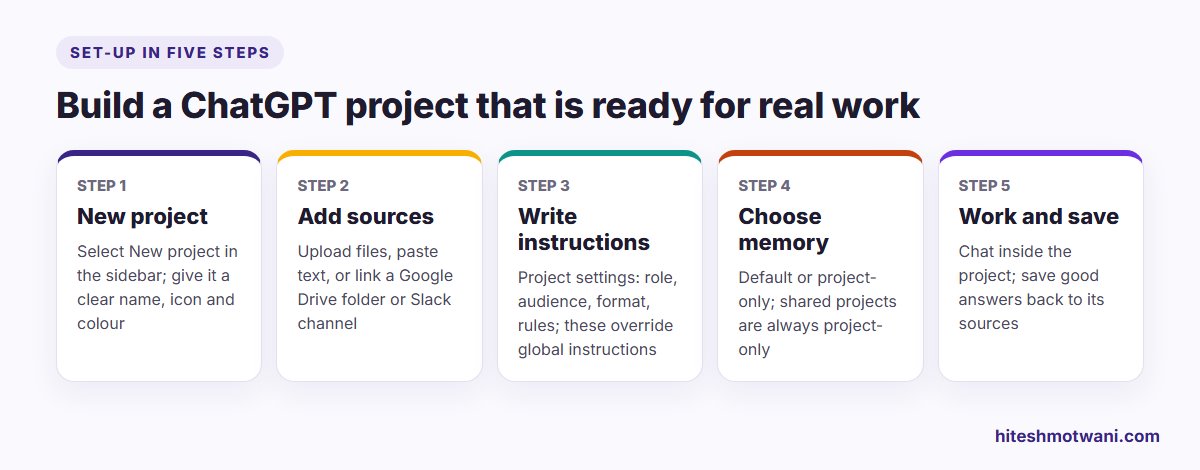
1. Create the project
Select New project in the sidebar, give it a name, and pick an icon and colour. Name it after the work rather than the tool: “Acme Ltd – monthly reporting” is easier to find in three months than “Reports”.
2. Add sources
Upload PDFs, spreadsheets, documents or images, or paste text directly. You can upload up to 10 files at a time. OpenAI now also lets you add a Google Drive file or folder, or a Slack channel, as a project source by pasting its link, so ChatGPT works from the current version rather than a copy you uploaded last month. If you’re asked to connect the app, approve the access first.
Be selective. A project with the right four files gives better answers than one with 25 loosely related ones. Good candidates are a brief, a style guide, a glossary of your organisation’s terms, one or two examples of finished work you liked, and the current data you are working from.
3. Write project instructions
Open the more options menu (···), choose Project settings and add your instructions. These apply only inside the project and override your global custom instructions, which is useful if your personal settings say “be brief” but this project needs full reports.
This is the step most people rush, and it’s the one that matters most. See the next section for what to write.
4. Choose a memory setting
In the same Project settings screen you choose Default memory or Project-only memory. OpenAI now lets you change this after the project is created, although the change can take a few hours to apply. The section on memory below explains which to pick.
5. Work inside it, and save what’s worth keeping
Start new chats from inside the project. When ChatGPT produces something you’ll want again, such as a summary, a decision note or an approved draft, open the message menu and save it to the project’s sources. Over a few weeks the project builds up a record of what was decided, which is far more useful than a long scroll of chats.
To bring in an older conversation, drag it onto the project or open its menu and choose Move to project. The moved chat picks up the project’s instructions and files. One catch: chats started with a custom GPT can’t be moved into a project.
How to write project instructions that change the output
Instructions work best when they read like a briefing to a capable new colleague. Cover five things:
- Role and purpose: what this project is for and who ChatGPT is helping.
- Audience: who reads the output and what they already know.
- Sources: which file is the authority on what, and what to do if they disagree.
- Format: length, structure, headings, tables, currency and date formats.
- Rules: what never to do, such as invent figures, quote prices or name clients.
Here is an example for a monthly client report:
Readers: Acme’s marketing head and CFO. They are busy and not technical.
Sources: “Acme brief.pdf” sets the goals; the latest “MIS” sheet is the only source for numbers. If a number isn’t in the sheet, say so; never estimate.
Format: one-page summary first (five bullets), then a table of KPIs vs target, then three recommendations. Use INR in lakhs and dates as 10 Oct 2026.
Tone: plain, direct British English. No hype.
Before finishing, list any figures I should double-check.
Notice the last line. Asking ChatGPT to flag what it is unsure of is one of the cheapest quality checks there is. If you want more practice writing briefs like this, my guide to ChatGPT deep research uses the same structure for research prompts.
Default memory or project-only memory?
This is the setting that causes the most confusion, so here is the short version from OpenAI’s documentation.
- Project-only memory: your saved memories aren’t used in the project, chats can refer to other chats in the same project, and nothing outside the project can see in or be seen from it.
- Default memory: your saved memories are used, and chats can draw on other conversations in the project. On most plans, including Business, project chats can also refer to conversations outside the project, and be referred to by them. On Enterprise and Edu, project chats stay contained within the project.
My rule of thumb: use project-only memory for anything client-specific or confidential, so details from one client never leak into another client’s work. Use default memory for personal projects where your general preferences help, such as a learning project or your own writing.
Shared projects are a special case. They always use project-only memory and can’t be switched to default, and they never see a member’s personal memories or custom instructions. On Business, a project is switched to project-only at the moment you share it.
One more thing worth knowing: project memory doesn’t show you a list of what it remembers. If you don’t want a particular conversation to influence future answers, delete that chat, or move it out of the project where the memory setting allows.
Rolling ChatGPT out to a team?
How to share a ChatGPT project with your team
Sharing turns a project into a shared workspace for a team. It’s available on every plan, Free, Go, Plus, Pro, Business, Enterprise and Edu, on the web and in the mobile apps.
Select Share and invite people with one of two access levels:
- Chat access: members can see and use the project’s chats, files and instructions, but can’t invite others.
- Edit access: members can also update instructions, add or remove files and invite people, but can’t remove existing members.
Only the owner can remove members, rename or delete the project, or open it to “Anyone with a link”. On Business, Enterprise and Edu you can also invite workspace groups, or share a workspace link that gives chat access by default.
A few behaviours to explain to your team before you share:
- Everyone sees everything in the project. Members can view and download every file, see all chats in the project and see the member list. Anything a member adds can shape the answers other members get.
- Chats are branched, not edited together. Members can continue someone else’s chat as a new branch, and the original stays as it was.
- Deleting a file deletes it for everyone.
- Leaving is tidy. Someone leaving a shared project can copy their chats into a new project first.
On data use, OpenAI says it does not train on content from Business, Enterprise, Edu or ChatGPT for Healthcare workspaces by default. For personal accounts, shared project data may be used to improve models only when the owner and every contributor have “Improve the model for everyone” turned on. If your organisation is still writing its rules on this, my article on an AI usage policy for employees covers what to include.
Project, custom GPT or a normal chat?
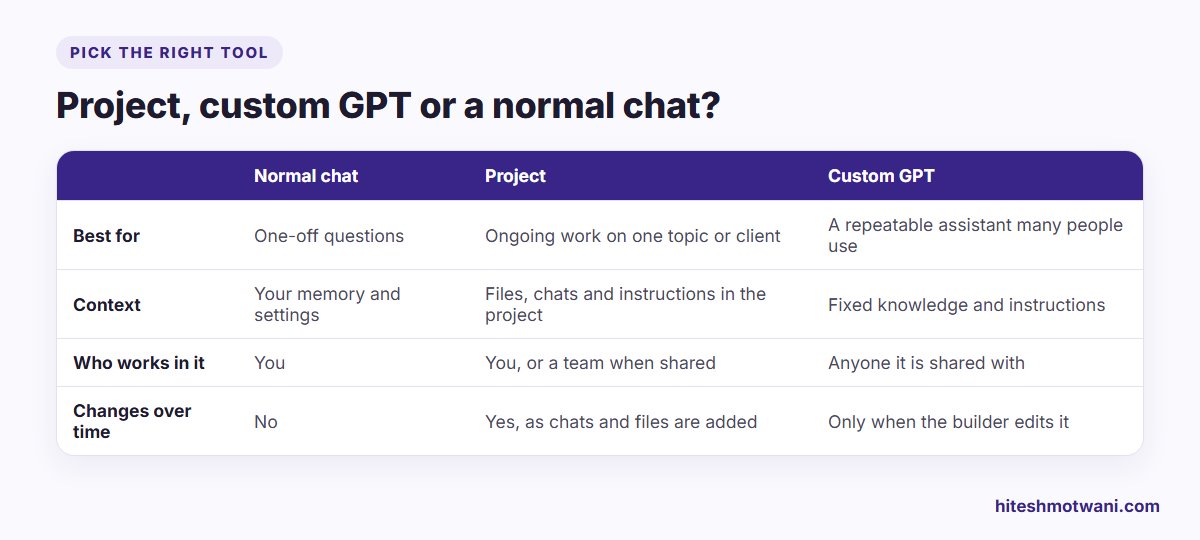
OpenAI describes the difference like this: a custom GPT is a fixed assistant, curated by one person and reused across the organisation (its example is an HR benefits GPT), while a shared project is a live hub for recurring team work that grows as people add files and chats (its example is a Q4 planning hub).
In practice:
- Use a normal chat for one-off questions.
- Use a project for ongoing work on one client, report, product or deal.
- Use a custom GPT when the same instructions should work the same way for many people, such as a policy assistant or a proposal checker.
You can also bring a custom GPT into an existing project chat. If the first message of a chat uses a GPT, though, that chat starts outside the project. If you work in Google’s tools as well, my guide to creating Gemini Gems compares Gems with ChatGPT Projects.
Five ChatGPT project templates for work
Each template lists the sources to add and a first line of instructions. Adjust them to your own work.
1. Client account project
Sources: client brief, contract scope (with prices removed if you prefer), meeting notes, last two reports. Instructions: “You support the account team for [client]. Use the brief for goals and the notes for decisions. Flag anything that looks outside the agreed scope.” Use project-only memory.
2. Monthly reporting project
Sources: the data sheet for the month, last month’s report, KPI definitions. Instructions: “Produce the monthly report in the same structure as last month. Numbers come only from the data sheet. List every figure you calculated so I can check it.” Replace the data file each month rather than adding a new one, so you stay under your file limit.
3. Proposal and RFP project
Sources: company profile, two strong past proposals, standard terms, the new RFP. Instructions: “Draft responses in our house style using only facts from our profile and past proposals. Mark any requirement we may not meet.”
4. Learning or certification project
Sources: syllabus, your notes, practice questions. Instructions: “Act as a tutor. Quiz me on one topic at a time, explain mistakes simply, and track which topics I keep getting wrong.” Default memory works well here. If you’re planning a wider learning route, my AI learning path is a good starting point.
5. Content and social media project
Sources: brand voice guide, audience notes, ten of your best past posts. Instructions: “Write in our brand voice. Offer three options for every post, each under 120 words, and never use these words: [list].” For prompt ideas, see 100 ChatGPT prompts for business growth.
Common problems and fixes
- “I’ve hit the file limit.” OpenAI suggests removing old uploads, combining files, or splitting the work into two projects. Merging ten small notes into one document usually fixes it.
- “Move to project doesn’t appear.” The chat may not be eligible, for example one started with a custom GPT. Start a new chat inside the project instead.
- “ChatGPT is ignoring my instructions.” Shorten them, put the most important rule first, and name the file that is the authority on each point.
- “Answers mix up two clients.” Switch both projects to project-only memory and wait a few hours for the change to take effect.
- “A temporary chat won’t move in.” Temporary chats can’t be added to a project; save it as a regular chat first.
Where projects save the most time
In my experience, projects pay off fastest on work that repeats on a schedule, such as weekly updates, monthly reports and recurring client work, because the set-up cost is paid once and then reused every week. For a realistic way to estimate the benefit for your own role, see how much time AI actually saves you.
Questions people ask
Getting more from ChatGPT at work
About the author
Hitesh Motwani is a generative AI trainer who runs hands-on workshops for teams in India and the UAE, delivered in the UAE through Skillopedia FZC LLC. He is visiting faculty at K J Somaiya Institute of Management and the author of Generative AI 360° (ZebraLearn, 2025).