How to Use Copilot in Teams: Meetings, Recaps, Facilitator and 20 Prompts
What Copilot can do in Teams
Copilot shows up in three places in Microsoft Teams:
- Meetings: it summarises the discussion, including who said what, suggests action items and answers your questions in real time or after the meeting.
- Chats: in one-to-one and group chats it reviews the main points, decisions and action items so you don’t have to scroll back.
- Channels: it answers questions about a channel post and its replies, and can produce a quick thread summary.
There is also Facilitator, an AI agent that takes shared notes for everyone in a meeting. It’s easy to confuse with Copilot, so it gets its own section below.
Before you start: licence and set-up
Copilot in Teams meetings comes with a Microsoft Copilot licence for work accounts. Intelligent recap is also available through Teams Premium, a separate add-on. Facilitator needs a Copilot licence too, plus Loop experiences turned on for your organisation. Microsoft has reorganised its Copilot licence names during 2026, so if you’re unsure what your account includes, my guide to Copilot in Excel explains how to read the licence label on your Microsoft 365 home page.
One important limitation: Copilot doesn’t work in meetings hosted by another organisation. If a client sends the invitation, you won’t have Copilot in that meeting, even with a licence.
Step 1: choose the right meeting setting
As the organiser, you decide whether and how Copilot can be used, even if you don’t have a licence yourself. In the meeting scheduler, open Online meeting options > Copilot and other AI, and set Allow Copilot and Facilitator to one of three values.
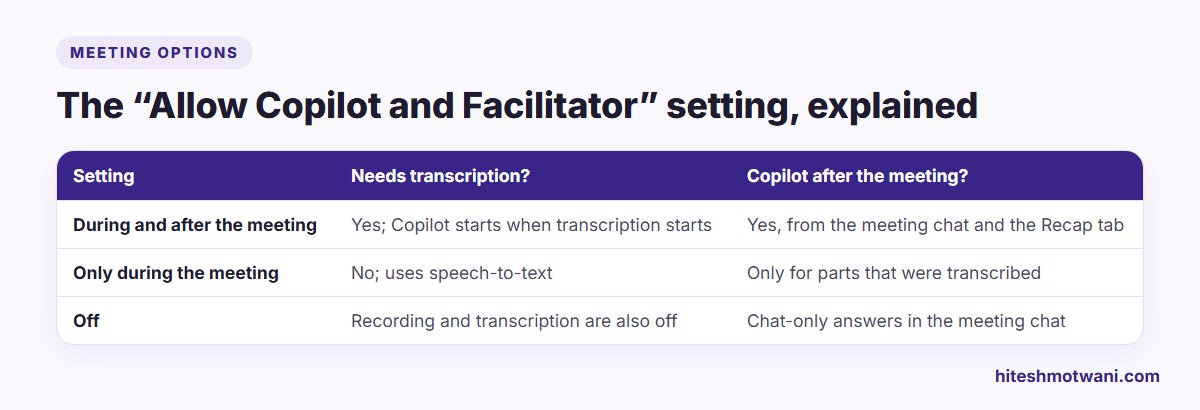
- During and after the meeting: Copilot needs transcription. It starts when someone begins transcribing, and stopping the transcript stops Copilot. Afterwards, everyone with access can still ask Copilot about the meeting. This is the right choice for most internal working meetings.
- Only during the meeting: Copilot works from speech-to-text without a saved transcript. Once the meeting ends, anything not transcribed is gone, along with people’s Copilot conversations. Use this for sensitive discussions where you want help in the moment but no record afterwards.
- Off: Copilot is disabled, and so are recording and transcription. Copilot in the meeting chat can still answer questions, but only from what was typed in the chat.
Which option is available to you may depend on your organisation’s policy, the meeting template and its sensitivity label.
Step 2: use Copilot during the meeting
Select Copilot in the meeting controls. Your conversation with Copilot is private: other attendees don’t see your questions or the answers. Select View prompts for suggestions, or type your own.
Useful moments to ask:
- Joining late. If you join more than five minutes after the start and Copilot is active, Teams offers to catch you up. Accept it instead of interrupting the meeting.
- Before a decision. Ask, “Where do we disagree, and what are the open questions?”
- Near the end. Ask, “List the action items with owners and dates mentioned so far,” and read them aloud for confirmation. That habit alone fixes most “I thought you were doing it” problems.
On the desktop app you can pop Copilot out into its own window so it doesn’t cover the shared screen.
Step 3: use Copilot after the meeting
After the meeting, open Copilot from the meeting chat (Open Copilot, top right) or from the Recap tab. Both show the same conversation history. Copilot answers from the transcript and the meeting chat, and cites which parts it used. If transcription was started, it also includes chat messages from up to 24 hours before the meeting.
Two features save time here:
- Open in Word: if Copilot’s answer is longer than 1,300 characters, you can open it in Word to turn it into minutes or a follow-up note.
- Open in Excel: if the answer is a table, such as an action-item list, you can open it in Excel.
Export is blocked if the meeting’s sensitivity label doesn’t allow it, or if the organiser turned off copying and forwarding of chat, captions and transcripts.
For follow-up emails, my guide to Copilot in Outlook shows how to turn a recap into a well-pitched email.
Setting meeting habits for a whole team?
Copilot vs Facilitator: which one to use
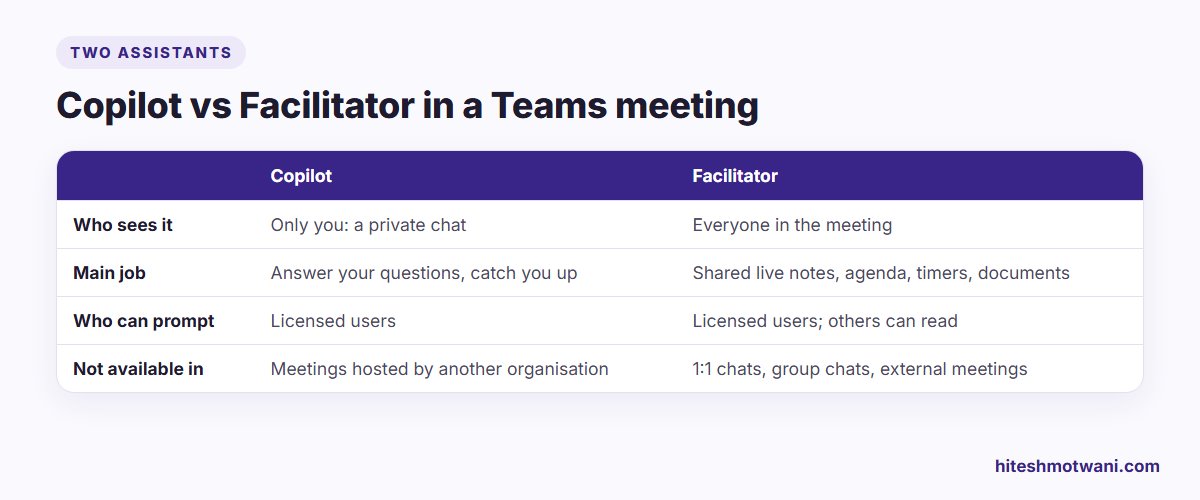
Microsoft describes the difference clearly. Your prompts to Copilot and its responses are private to you. Facilitator behaves like an assistant sitting in the meeting: when someone prompts it, everyone can see the question and the answer in the meeting conversation.
What Facilitator does:
- Takes live notes that every participant can see and edit in the Notes tab.
- Answers questions from the meeting and web content when someone mentions @Facilitator.
- Tracks agenda topics and time, with reminders at the halfway point and near the end.
- Creates a Word document during or after the meeting, for example, “@Facilitator, create a requirements document based on this meeting.”
Things to know before you rely on it:
- Only licensed users can start or prompt Facilitator; others can still read its notes and responses.
- It doesn’t work in one-to-one chats, group chats or external meetings.
- When you start it, you choose the spoken language. Notes are only taken for the parts of the meeting spoken in that language, so plan around this in meetings where people switch between, say, English and Hindi or Arabic.
- The notes are stored as a Loop file in the OneDrive of the person who started Facilitator.
- Task tracking with Planner is still in preview, and Microsoft says Loop file creation is being replaced by improved Word document creation.
A simple way to split the work: use Facilitator for the shared record everyone agrees on, and Copilot for your own private questions, such as “What did finance say about my budget line?”
Copilot in Teams chats and channels
Chats
Open any one-to-one or group chat and select Open Copilot in the upper-right corner. By default Copilot looks at the last 30 days of the chat unless you name another time frame, such as “last week” or “September 2026”. Select Sources under an answer to jump to the original message, which is the quickest way to check a summary.
Copilot can’t summarise images, Loop components or files shared in the chat; it works from the messages themselves.
Channels
In a channel, open a post with its replies, then select Open Copilot. For a quick overview, open More actions on a thread and choose Summarize thread. A thread needs at least 1,000 characters of text before a summary is offered.
Copilot can also help you rewrite or adjust a message before you send it, which is handy for a careful reply in a busy channel.
20 prompts for Copilot in Teams
In or after a meeting
- “Summarise the meeting so far in five bullets.”
- “List all action items with owners and due dates. Mark any without an owner.”
- “Where do people disagree, and what are the arguments on each side?”
- “What did [name] say about the budget?”
- “What questions are still unanswered?”
- “Create a table of the options discussed with pros and cons.”
- “What decisions were made, and who agreed to them?”
- “Draft a follow-up note for attendees with decisions and next steps.”
- “What risks or concerns were raised?”
- “Summarise the parts of the discussion relevant to the finance team.”
Chats and channels
- “Summarise what I missed in this chat since Monday.”
- “What decisions were made in this chat last month?”
- “What has [name] asked me to do in the last two weeks?”
- “What links and documents were shared in this chat?”
- “What are the key takeaways from this channel thread?”
- “List open questions in this thread that nobody has answered.”
- “Summarise the customer issues raised in this channel this week.”
- “What was agreed about the launch date?”
- “Who is waiting on a reply from me?”
- “Turn this thread into three bullet points for my manager.”
When there’s no recap: six things to check
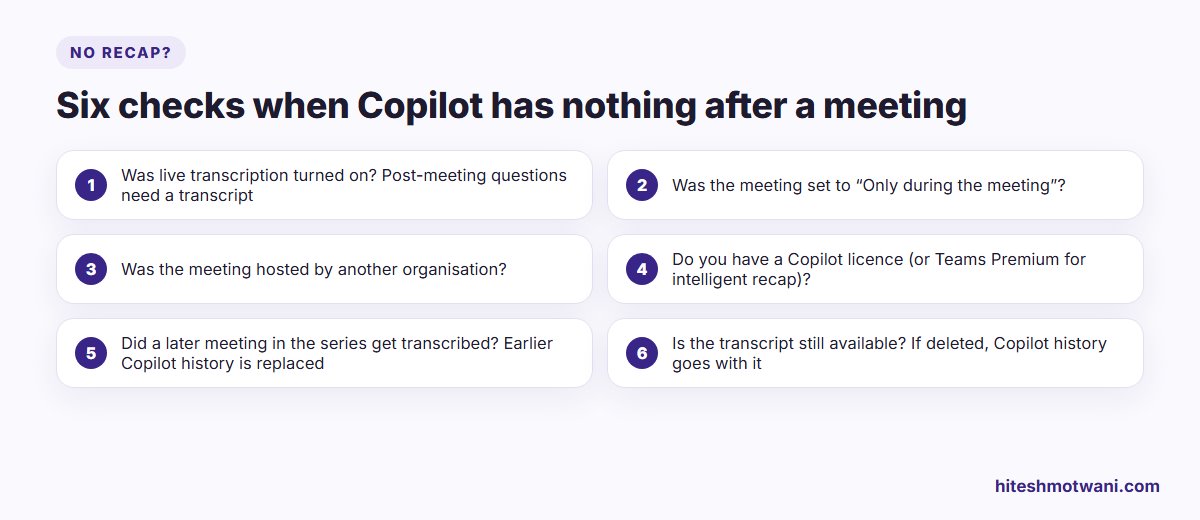
- Transcription wasn’t on. Asking questions after the meeting needs a transcript.
- The meeting was set to “Only during the meeting”. Untranscribed content and Copilot conversations disappear when it ends.
- Another organisation hosted it. Copilot isn’t available in meetings hosted outside your organisation.
- No licence. Intelligent recap needs a Copilot licence or Teams Premium.
- It’s a recurring meeting. Microsoft says earlier Copilot history in a series is no longer available once a later meeting in the series is transcribed. Export anything important after each meeting.
- The transcript was deleted. If the transcript is no longer available, Copilot and its history go with it.
Ground rules worth agreeing as a team
- Tell people when you transcribe. Teams shows a notice, but say it out loud too, especially with guests.
- Confirm action items in the room. A Copilot list is a draft until people agree to it.
- Check names and numbers against the transcript before sending minutes.
- Use “Only during the meeting” or “Off” for HR, legal and other sensitive discussions, in line with your company’s AI policy. If you don’t have one yet, my article on an AI usage policy for employees covers the basics.
If you want a way to estimate what these habits are worth in hours per week, see how much time AI actually saves you.
Questions people ask
Getting more from Microsoft Copilot at work
About the author
Hitesh Motwani is a generative AI trainer who runs hands-on workshops for teams in India and the UAE, delivered in the UAE through Skillopedia FZC LLC. He is visiting faculty at K J Somaiya Institute of Management and the author of Generative AI 360° (ZebraLearn, 2025).